Barcode printers play an essential role in inventory management, product identification, retail billing, manufacturing, and warehouse operations. When labels are faded, misaligned, or unreadable, businesses may experience scanning errors, shipment delays, and interruptions to daily workflows. Understanding common barcode printer problems helps teams identify the cause, apply the right troubleshooting steps, and reduce avoidable downtime.
Whether you use a desktop printer for retail labels or an industrial barcode printer for high-volume manufacturing, regular maintenance and correct printer settings can significantly improve printing reliability. This guide explains the most frequent issues, their possible causes, and practical solutions.
1. Barcode Printer Is Not Printing
A printer that does not respond to a print command may have a power, connectivity, driver, or configuration issue.
Possible causes:
- Loose power or USB cables
- Incorrect printer selection or an offline status
- Outdated or incompatible printer drivers
- Print jobs stuck in the queue
- Incorrect label or media settings
How to fix it:
First, check the power supply and confirm that the printer is ready. Inspect the USB or network connection and verify that the correct printer is selected in your computer’s settings. Clear any stuck print jobs and check the driver and label-printing software configuration. If the printer produces a test label but not the document from your application, investigate the software, communication port, or network settings.
Facing Barcode Printer Issues? Get Expert Support Today!
2. Faded or Blurry Barcode Labels
Poor print quality can make barcodes difficult for scanners to read. This issue is particularly important in warehouses, manufacturing facilities, and logistics operations where accurate identification is essential.
Possible causes:
- Dust or residue on the thermal printhead
- Incorrect print darkness or speed settings
- Worn printhead or platen roller
- Incompatible ribbon and label materials
- Incorrect print resolution for the barcode design
How to fix it:
Switch off the printer and follow the manufacturer’s cleaning instructions to clean the printhead and accessible media path. Check the print darkness and speed settings, then print a sample label. For thermal transfer printing, ensure that the ribbon is compatible with the label material and correctly installed.
If print quality remains inconsistent, inspect the printhead and platen roller for wear. Persistent defects may require professional servicing or replacement components.
3. Printer Produces Blank Labels
Blank labels may indicate incorrect media configuration, an improperly installed ribbon, or a printing method mismatch.
Possible causes:
- Incorrect direct thermal or thermal transfer settings
- Ribbon installed incorrectly or not feeding properly
- Labels loaded in the wrong direction
- Empty ribbon or incorrect consumables
- A damaged thermal printhead
How to fix it:
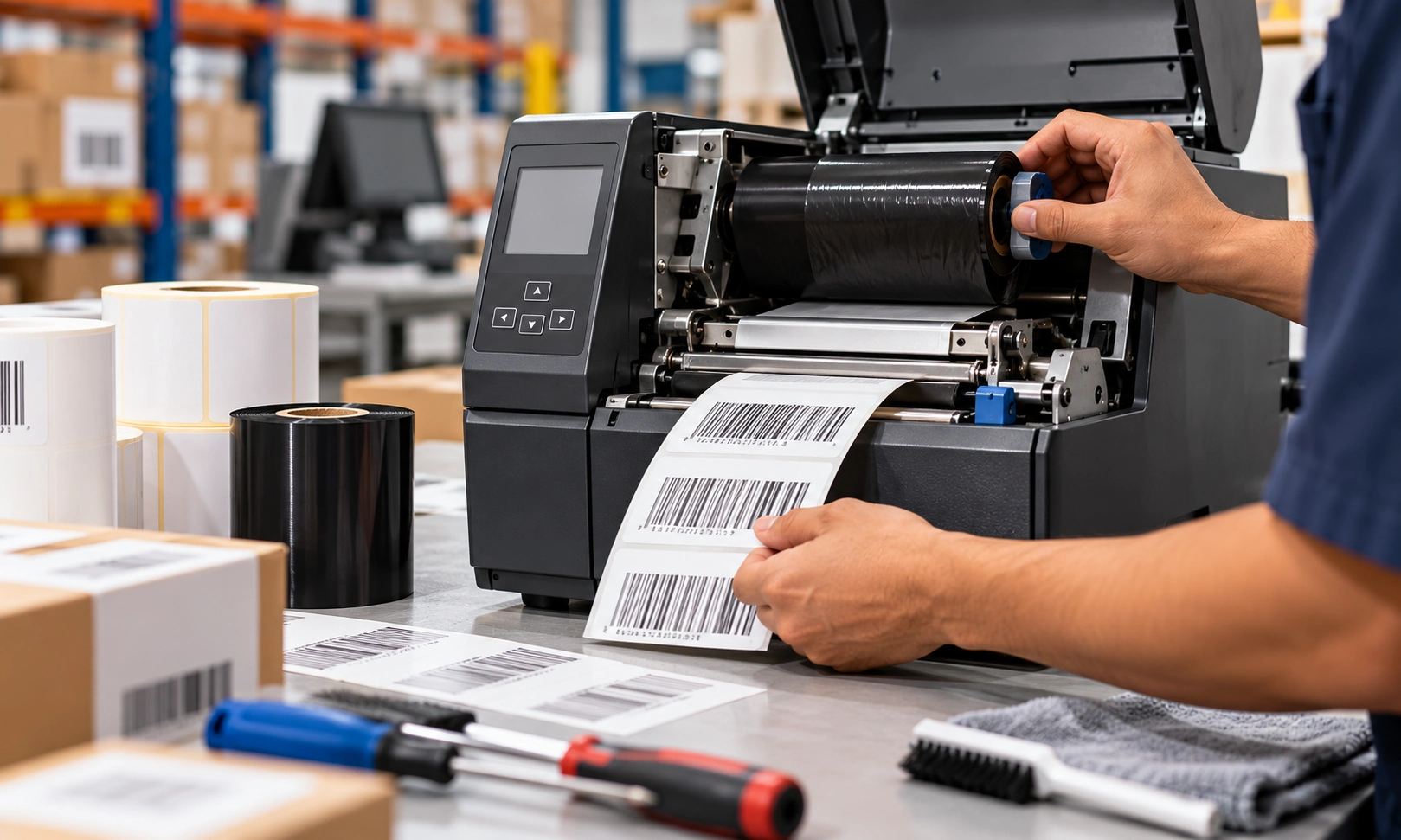
Confirm whether your printer uses direct thermal or thermal transfer printing. Direct thermal printers use heat-sensitive labels, while thermal transfer printers use a ribbon to transfer an image onto the label. Check the media type selected in the printer settings and verify that the labels are loaded correctly.
For thermal transfer models, confirm that the ribbon’s ink side faces the label as specified by the printer manufacturer. If blank output continues after checking these settings, arrange a technical inspection.
4. Barcode Labels Skip or Print Out of Alignment
Incorrect label positioning can waste consumables and create difficulties when applying labels to products, cartons, or packages.
Possible causes:
- Incorrect label dimensions in the software
- Misaligned label guides
- Dirty or incorrectly positioned media sensors
- Incorrect gap or black-mark detection settings
- Missing media calibration
How to fix it:
Check that the label size configured in your printing software matches the physical label. Ensure that the label roll is properly loaded and aligned between the guides. Clean the media sensors according to the manufacturer’s instructions.
Next, perform a media calibration using the procedure specified for your printer model. Calibration helps the printer detect label gaps or black marks accurately. If labels continue to skip, review the sensor position and confirm that the media meets the printer’s specifications.
Keep Your Barcode Printers Running Smoothly
5. Barcode Prints but Cannot Be Scanned
A printed barcode may look clear to the naked eye but still fail to scan. Poor contrast, insufficient quiet zones, incorrect sizing, or unsuitable print settings can affect barcode readability.
How to fix it:
Check the barcode’s print quality, dimensions, contrast, and surrounding blank space. Make sure the barcode format is supported by your scanning equipment and that the printed symbol has not been stretched or distorted by the label design software.
Test the label with the barcode scanner used in your actual workflow. If the barcode remains unreadable, review the printer’s resolution, the barcode settings, and the quality of the label material. For critical applications, use an appropriate barcode verification process rather than relying only on visual inspection.
6. Ribbon Wrinkles or Ribbon Feeding Issues
Ribbon wrinkles can cause uneven printing, streaks, and inconsistent barcode quality. Ribbon feeding problems may also trigger printer errors or interrupt production.
How to fix it:
Check that the ribbon is installed according to the printer’s loading instructions and is aligned with the label stock. Inspect the ribbon for wrinkles, damage, or incorrect tension. Confirm that the ribbon width and type are suitable for the selected media.
Adjust ribbon tension or printhead pressure only where the manufacturer permits it. Avoid making unnecessary mechanical adjustments, as incorrect settings can affect print quality and damage components.
7. Barcode Printer Connectivity Problems
USB, Ethernet, Wi-Fi, and Bluetooth connections allow barcode printers to work with computers, mobile devices, and business applications. Connection failures can interrupt label printing across retail counters and warehouse workstations.
How to fix it:
Check cable connections and verify that the printer is connected to the correct network. For network printers, confirm the IP address, port configuration, and device status. For wireless models, check pairing, network credentials, and supported connection settings.
If the printer works locally but not through your warehouse management system (WMS) or enterprise resource planning (ERP) software, review the application integration, driver compatibility, and communication configuration.
How to Prevent Recurring Barcode Printing Issues
Preventive maintenance is more effective than repeatedly troubleshooting the same faults. Businesses can improve printer reliability by following a consistent maintenance routine.
- Clean the printhead, platen roller, and accessible sensors as recommended by the manufacturer.
- Use compatible barcode labels, ribbons, and other consumables.
- Check label dimensions and media settings whenever changing label stock.
- Inspect printed labels regularly for fading, streaks, and alignment issues.
- Keep printer drivers and firmware updated using approved manufacturer procedures.
- Train operators to load labels and ribbons correctly.
- Schedule professional servicing when faults persist or components show signs of wear.
For warehouses, manufacturing plants, and distribution centres, these practices help reduce printing interruptions and maintain consistent product identification.
When Should You Seek Professional Barcode Printer Support?
Basic checks can resolve many printing faults. However, repeated printhead errors, persistent calibration failures, unexplained communication problems, and recurring print-quality defects may require specialist assistance.
A qualified technical support team can assess the printer model, media compatibility, configuration, operating environment, and application requirements. This approach helps identify the underlying cause instead of relying on repeated trial-and-error adjustments.
Get Expert Barcode Printing Support from Stallion Global
Stallion Global, has been supporting businesses with barcode, RFID, mobility, POS, and automation solutions since 1996. The company serves customers across India and the Middle East, with solutions for manufacturing, retail, warehousing, logistics, healthcare, and inventory management.
As a long-standing Honeywell partner since 2015 and Honeywell’s only Diamond Partner in India, Stallion Global offers access to barcode printing technologies alongside product guidance and technical support. Its portfolio also includes solutions from Datalogic, Sunmi, Avery Dennison, and other technology partners.
Whether you need help troubleshooting an existing printer, selecting compatible labels and ribbons, or evaluating a new barcode printing solution, Stallion Global can help you identify an option suited to your operational requirements.
Reduce Printer Downtime with Stallion Global's Expert Support!
Frequently Asked Questions
Why is my barcode printer not printing?
Check the power supply, connections, printer status, print queue, drivers, and media settings. If the printer can print a test label but not from a specific application, investigate the software or communication configuration.
Why are my barcode labels printing faintly?
Faded labels may result from a dirty or worn printhead, unsuitable print speed or darkness settings, or incompatible label and ribbon materials. Clean the printer as instructed by the manufacturer and review the settings.
Why does my barcode printer skip labels?
Common causes include incorrect media calibration, misaligned sensors, incorrectly loaded labels, and mismatched label dimensions. Check the media path and perform the appropriate calibration procedure.
How often should I clean a barcode printer?
Cleaning frequency depends on the printer model, label material, print volume, and operating environment. Follow the manufacturer’s maintenance schedule and clean the printer more frequently when dust or residue builds up.